
Studio MANUAL
The free EventSound app, available in the iOS AppStore and Android PlayStore, enables you to tune in to a live Event audio stream. To stream to the EventSound app, you will need the EventSound Studio software.

The studio software is available for Windows and Mac operating systems.

STEP 2 – ACTIVATE
You will find the EventSound Studio code for your event in your Manager Account. If you have more events, you can add more codes here later.

STEP 3 – SET AUDIO I/O
Go to settings via the ‘hamburger’ settings button, Select audio I/O. Choose the audio driver type for your input and output.

STEP 4 – GO LIVE
Click the Mic button to test your Mic level, press the headphone button to listen to yourself (with a small delay) . Click the satellite button to connect to the server. For more information during broadcast click the i button.

More information
MANAGE STREAMS: setup more EVENTS from 1 device
EventSound Studio can send Audio to more events. Think about multi-language translations. Connect a multi-channel audio card and connect as many channels you need.

SOUNDFILE PLAYER: Play audio files direct from EventSound Studio
Set a playlist as pre-game audio or just insert jingles on the go.

OPTIONS: Config / General / Instance
In the options menu several functions can be found.


ABOUT: More information
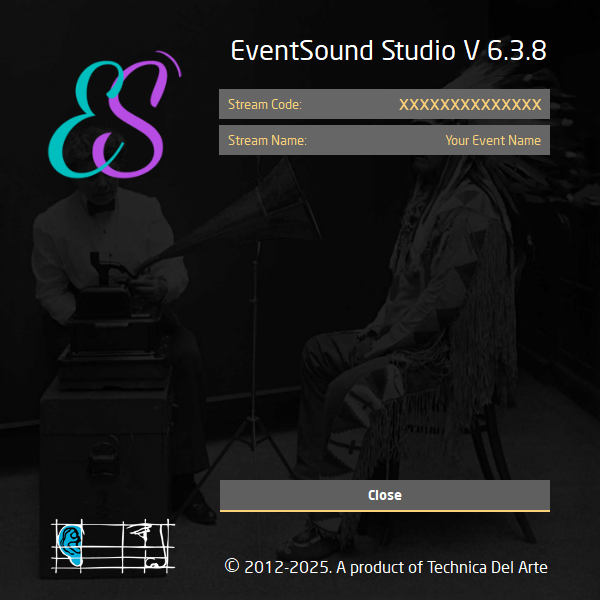
Stream Code and Stream Name per instance is displayed.
MAIN WINDOW: Explained
Stream Code and Stream Name per instance is displayed.


PLAY BUTTON: Explained
Plays file which has been selected, view the file player for more options

HEADPHONE BUTTON: Explained
You can listen to your stream with the headphone button.
